


SharePoint vs OneDrive is not a contest. For an Australian business, the useful question is: who needs this file today, and who must still control it when the person who created it leaves?
Choose the right home for each document and your team can spend less time finding versions, requesting access and wondering which folder is safe to share. The Microsoft modern workplace brings several tools together, but each has a different job.
The short answer: use OneDrive for your individual working files and occasional sharing. Use SharePoint for documents a team needs to own and manage together. Teams provides a collaboration workspace; Microsoft Entra ID manages identities and access; Azure can support workloads that need something other than a document library.
You will often need both SharePoint and OneDrive. This follows Microsoft’s small-business file-storage guidance.
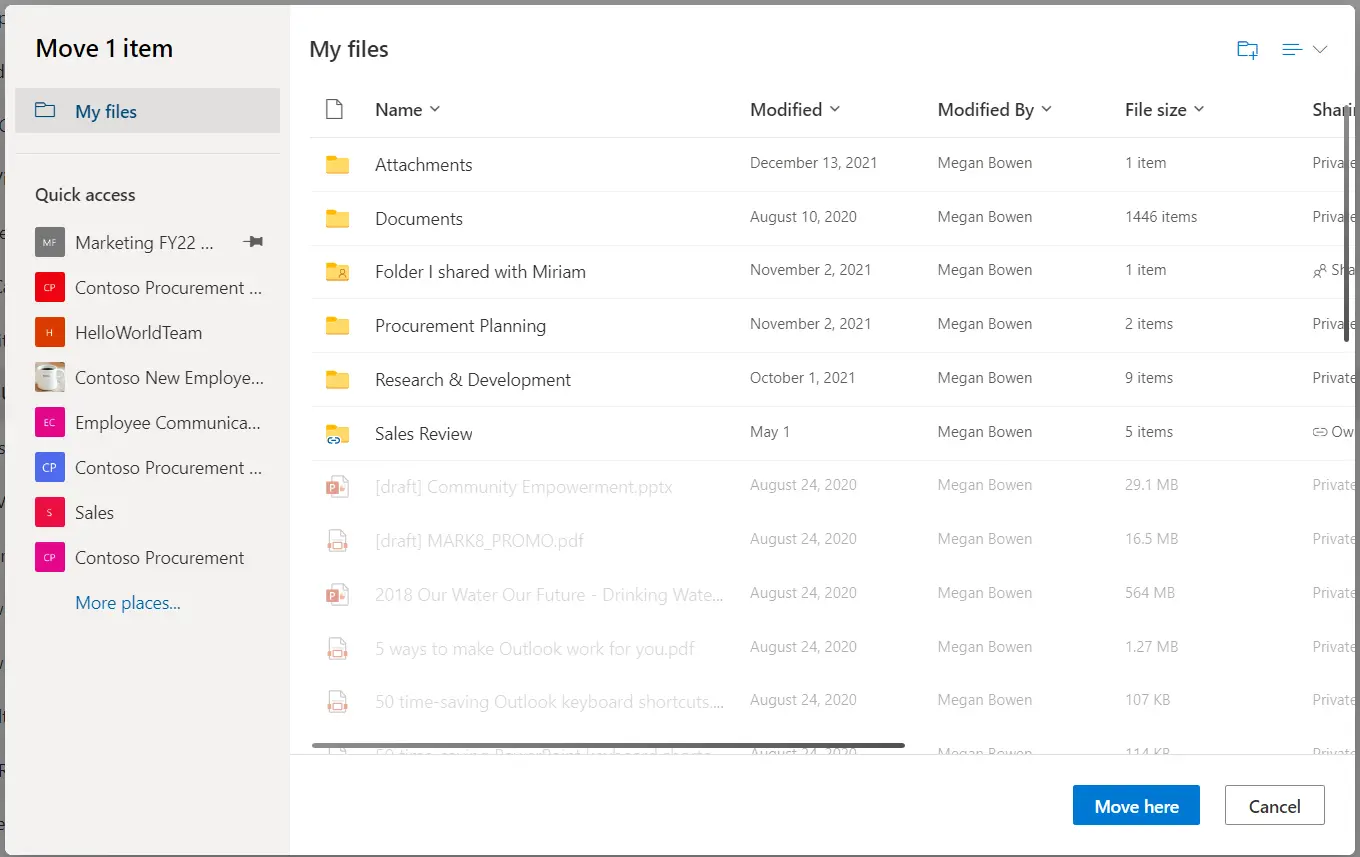
SharePoint vs OneDrive: a practical comparison
Both products support sharing and collaboration. The distinction is the lifecycle of the content, not a rule that OneDrive is only for private files.
| Decision | OneDrive for work | SharePoint Online |
|---|---|---|
| Best starting point | Your drafts and individual working documents. | Team procedures, project documents and shared business records. |
| Ownership model | A library associated with an individual user. | A site and libraries managed for a team or business purpose. |
| Working with others | Share selected files and co-author supported documents. | Organise ongoing collaboration across shared libraries. |
| When someone leaves | Review, delegate and transfer required business content. | Review membership and site ownership; keep the team’s content in its shared home. |
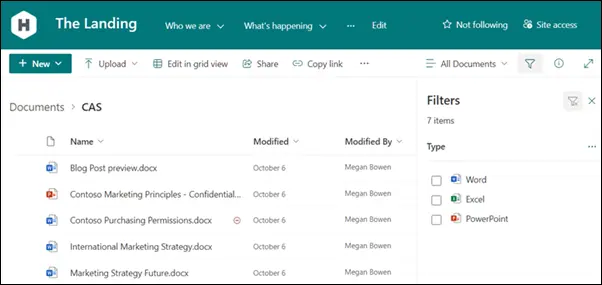
A draft proposal might begin in OneDrive. Once it becomes a live customer project, the working documents belong in the agreed team library. Decide when that handover happens so “my draft” does not quietly become the only copy of “our business record”.
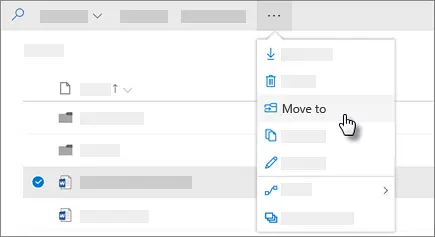
What SharePoint and OneDrive look like in practice
Where Teams, Entra and Azure fit
Microsoft Teams is not a separate filing system you should design in isolation. Standard channel files live in the connected SharePoint site. Private and shared channels have their own SharePoint sites, which matters when reviewing access. See Microsoft’s Teams and SharePoint integration guidance.
Microsoft Entra ID is the cloud identity and access service behind Microsoft 365 sign-ins. Azure Active Directory was renamed Microsoft Entra ID; the entire Azure platform was not renamed. Microsoft Entra is also a broader product family, so do not assume every Entra feature is included with your subscription. Microsoft explains the product family here.
Azure handles a wider range of cloud infrastructure and application needs. For example, Azure Files provides managed SMB and NFS file shares. It may suit an application that expects a traditional file share, but it is not automatically the right replacement for every server. Check the Azure Files workload guidance before choosing.
In short: SharePoint and OneDrive organise documents, Teams brings people together, Entra helps govern access, and Azure supports additional workloads. A Microsoft modern workplace plan should connect those decisions.
Three workplace scenarios: what belongs where?
These are illustrative planning scenarios, not claims about named Compuloop clients or measured customer outcomes.
1. A professional-services team sharing client documents
A manager keeps proposals in OneDrive and emails copies to colleagues. The same folder later holds signed documents and ongoing client work. Now the business depends on one person’s library.
A better design is a controlled SharePoint library for the team’s client records, with membership based on responsibilities. Keep external collaboration in an explicitly approved area. Before rollout, test that an invited client can reach the intended documents and cannot reach unrelated client folders.
2. A project team with office and field staff
Project staff need drawings, checklists and meeting notes. A consistent SharePoint structure, surfaced through Teams, gives the project a shared home. Test the actual phones, laptops and connectivity staff use rather than assuming every workflow will work offline.
Microsoft’s file-collaboration guidance covers syncing SharePoint and OneDrive content. However, a legacy estimating tool or CAD workflow may have separate storage and file-locking requirements. Keep those workloads on the assessment list; validate application-vendor support before moving them.
3. A departing employee with important files in OneDrive
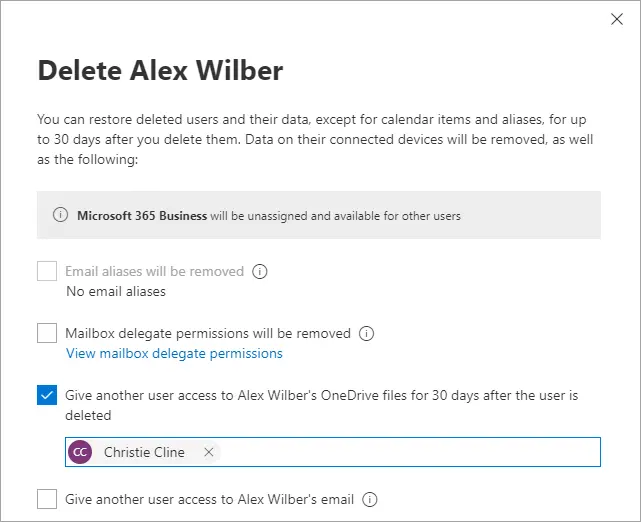
The team needs continuity, not a scramble for access after an account is removed. Identify important content, delegate access where appropriate, and move shared business records to their agreed destination before completing offboarding.
Blocking sign-in and deleting an account are different actions. Microsoft documents a configurable retention period for a deleted user’s OneDrive, with a 30-day default. Do not use that window as your handover plan; other retention settings can affect the lifecycle. Review Microsoft’s current deletion and retention behaviour.
A real Australian example: McGees Property
In an Australian customer story published on 24 April 2025, Microsoft describes how McGees Property responded to a 2022 ransomware incident that left it locked out of its IT systems for more than four weeks.
The subsequent changes included Microsoft 365 adoption, restructuring information in SharePoint and helping staff use the new environment. The lesson for a smaller business is practical: moving files alone is not a complete workplace project. Structure, security and staff adoption need attention together.
This is a Microsoft-published customer example, not a Compuloop client case study. It does not mean Microsoft 365 eliminates ransomware risk.
Secure sharing needs rules people can follow
“Can you send me the link?” should not become an uncontrolled access process. Decide who may invite external collaborators, what information they may share and who reviews that access when a project ends.
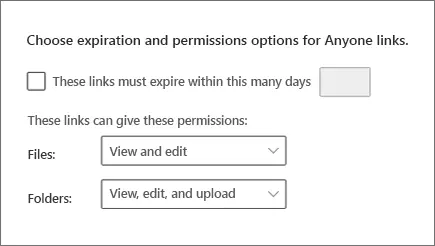
SharePoint has organisation-level and site-level sharing controls. A site cannot be more permissive than the organisation allows. “Anyone” links can be forwarded and used without authentication, so do not confuse a convenient link with proof of the recipient’s identity. Microsoft documents these sharing controls and their interaction.
- Separate audiences: distinguish internal working areas from approved external collaboration.
- Assign accountability: name an owner who reviews membership and removes access that is no longer needed.
- Test the boundary: check access using a representative external account, not only an administrator’s account.
- Explain the process: give staff a clear way to request a new client workspace or sharing exception.
Check your Microsoft Entra security and licensing
File permissions answer who may access information. Identity policies help determine the conditions under which that access is allowed. Microsoft Entra Conditional Access can apply access requirements based on signals such as the user, application or device.
Conditional Access generally requires Microsoft Entra ID P1; Microsoft 365 Business Premium includes access to that capability. Risk-based policies require additional capabilities such as Entra ID Protection, associated with P2. Device-compliance scenarios may also depend on Intune licensing and configuration. Verify the current licensing requirements for the users and features in scope.
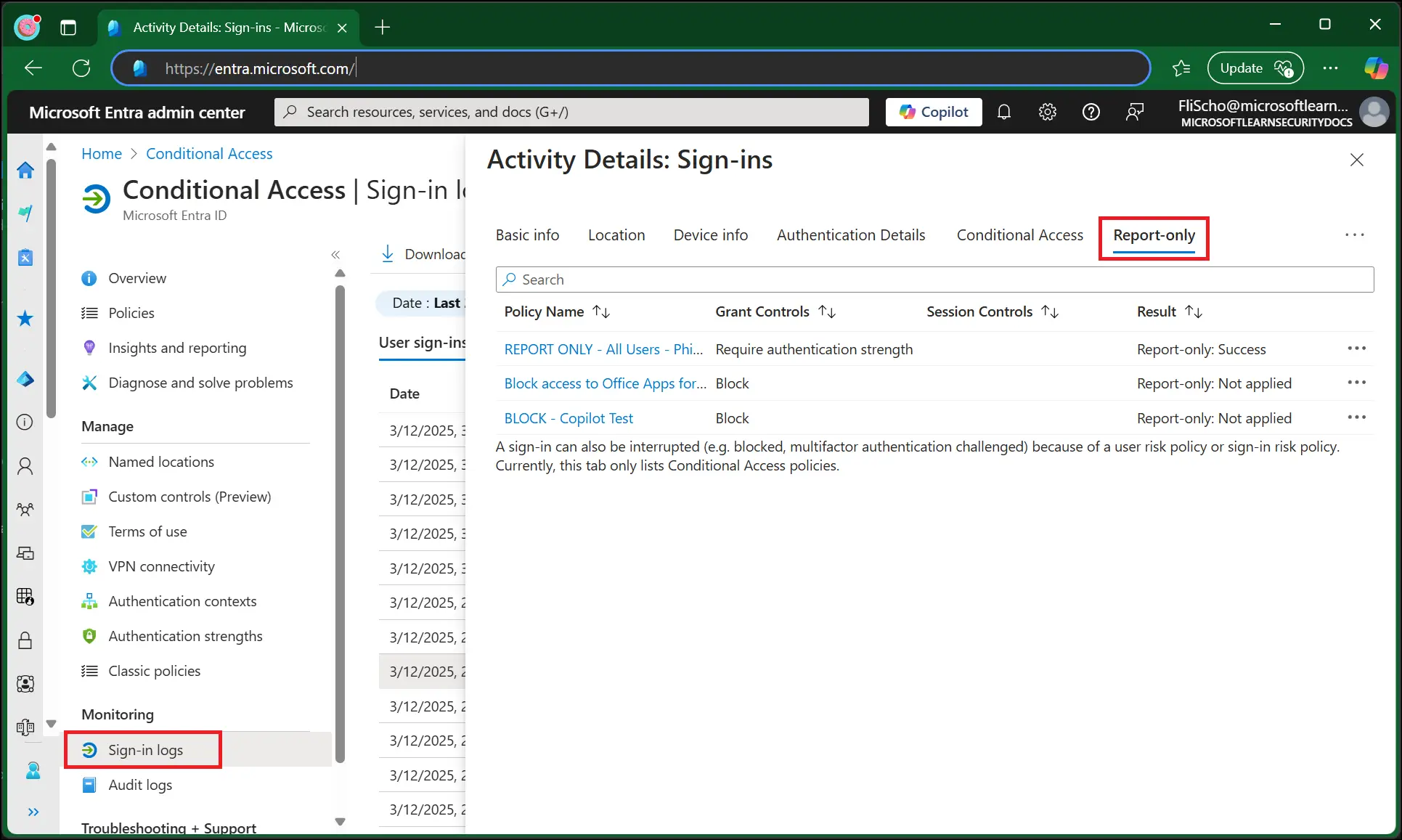
Do not enable a broad new policy without testing administrative recovery and representative user journeys. Report-only mode helps evaluate a proposed policy without enforcing its access controls; it is not protection on its own. Keep existing enforced safeguards in place while evaluating changes. Microsoft explains report-only behaviour and limitations.
For another layer of the identity discussion, read our Microsoft 365 passkeys guide.
A six-question checklist before moving business files
Use this checklist to turn the SharePoint vs OneDrive decision into a workable migration brief. Record an owner and a test for every answer.
- Ownership: which files are individual work, and which must remain with the team? Give each shared library a business owner.
- Access: who should read, edit and invite others? Include a negative test: someone outside the group must not gain access.
- Compatibility: which applications depend on mapped drives, file locking or integrations? Test them with representative files before choosing a destination.
- Migration: what will be archived, moved or left behind? Run discovery and a pilot, resolve exceptions, then plan cutover. Microsoft’s Migration Manager supports assessment and file-share migration workflows.
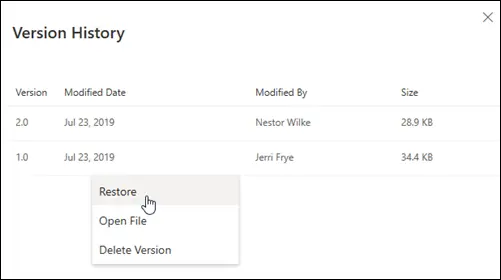
- Recovery: what happens after accidental deletion, damaged content or an account incident? Define the recovery requirement, confirm which protection covers it, and test a restore. Discuss any gaps in your backup arrangements.
- Adoption: can staff find, share and recover a representative document? Provide short instructions and a support route, then review what actually happens after launch.
The goal is not a perfect folder tree. It is evidence that the right people can do their work and that an error does not leave the business without an owner, a recovery path or a support contact.
Questions Australian businesses ask
Do we need both SharePoint and OneDrive?
Often, yes. They serve different working patterns. Give staff a simple rule for individual drafts, team records and external collaboration instead of asking them to choose a product each time they save.
Does using Microsoft 365 mean all our data stays in Australia?
Do not assume that from the product name or an Australian billing address. Check the relevant services, tenant data locations and applicable commitments against your requirements. Microsoft publishes service-specific data-location guidance. A storage choice alone does not establish regulatory compliance.
Can SharePoint replace our file server?
It can be a suitable destination for collaborative documents, but not every server workload belongs there. Assess applications, permissions, integrations and recovery needs. Some workloads may need a different design, including Azure services or retained infrastructure.
Make your file setup easier to work with—and easier to manage
If your business relies on personal OneDrive folders, confusing Teams sites or a file server nobody wants to touch, talk to Compuloop about your Microsoft 365 environment.
Tell us your team size, where documents live today and the problem causing the most friction. We can discuss your priorities, the scope of a review and the next steps for your business.
Discuss your Microsoft 365 setupNo need to upload sensitive documents or share passwords with your initial enquiry.
Prepared 22 September 2026. Microsoft product capabilities, interfaces and licensing can change; confirm suitability for your own environment. Microsoft screenshots are reproduced under its published permissions guidance. Their inclusion does not imply endorsement.