

Microsoft 365 passkeys are becoming a more important part of business sign-in. Microsoft has begun changing the default authentication experience in Microsoft Entra ID, the identity service behind Microsoft 365 work accounts. Its announced transition moves organisations away from Microsoft-delivered SMS and voice authentication towards phishing-resistant methods. Read Microsoft’s announcement.
For an Australian business, the practical question is straightforward: can every person get into the systems they need, using an approved method, when the change reaches them?
A passkey project should cover more than switching on a setting. Office staff, site supervisors, external collaborators and administrators may need different arrangements. Recovery matters just as much as registration.
What is changing—and when?
Microsoft’s current technical guidance distinguishes these user groups:
| Date | Microsoft’s stated change |
|---|---|
| 1 September 2026 | Automatic passkey enablement and registration prompts begin for users enabled for SMS or voice. |
| 1 February 2027 | Microsoft-provided SMS and voice delivery retires for most users, including internal guest users. |
| 1 July 2027 | The retirement applies to Global Administrators and external users. |
Microsoft documents a temporary opt-out from automatic enablement during the transition. It is not an exemption from the applicable retirement deadline. Users relying solely on SMS or voice can face blocking registration prompts after their deadline. Check the current retirement guidance.
These are vendor changes, not an Australian law banning SMS MFA. Microsoft’s announcement covers Entra ID in the public cloud; other cloud environments have separate timelines. Businesses with a genuine need to retain SMS or voice should investigate Microsoft’s customer-managed telecom provider route, including regional availability, costs and testing. Do not assume a replacement is already configured for your organisation.
What is a passkey?
A passkey uses a cryptographic key pair instead of asking you to type a reusable password or text-message code. The credential is tied to the service it was registered with. A lookalike sign-in website therefore cannot use it in the same way an attacker can capture and relay a password or one-time code.
Depending on the approved method, you unlock a passkey with a device PIN or biometric check. Passkeys can be device-bound or synced through a supported credential provider. Microsoft also supports FIDO2 hardware security keys. The right choice depends on the device, role and organisation’s policies. Microsoft explains how passkeys work.
Phishing-resistant does not mean attack-proof. Compromised devices, poor account recovery and excessive access still need attention. Treat stronger sign-in as one part of your business cybersecurity controls, not a replacement for the rest.
Best hardware passkeys for Australian businesses: five options to shortlist
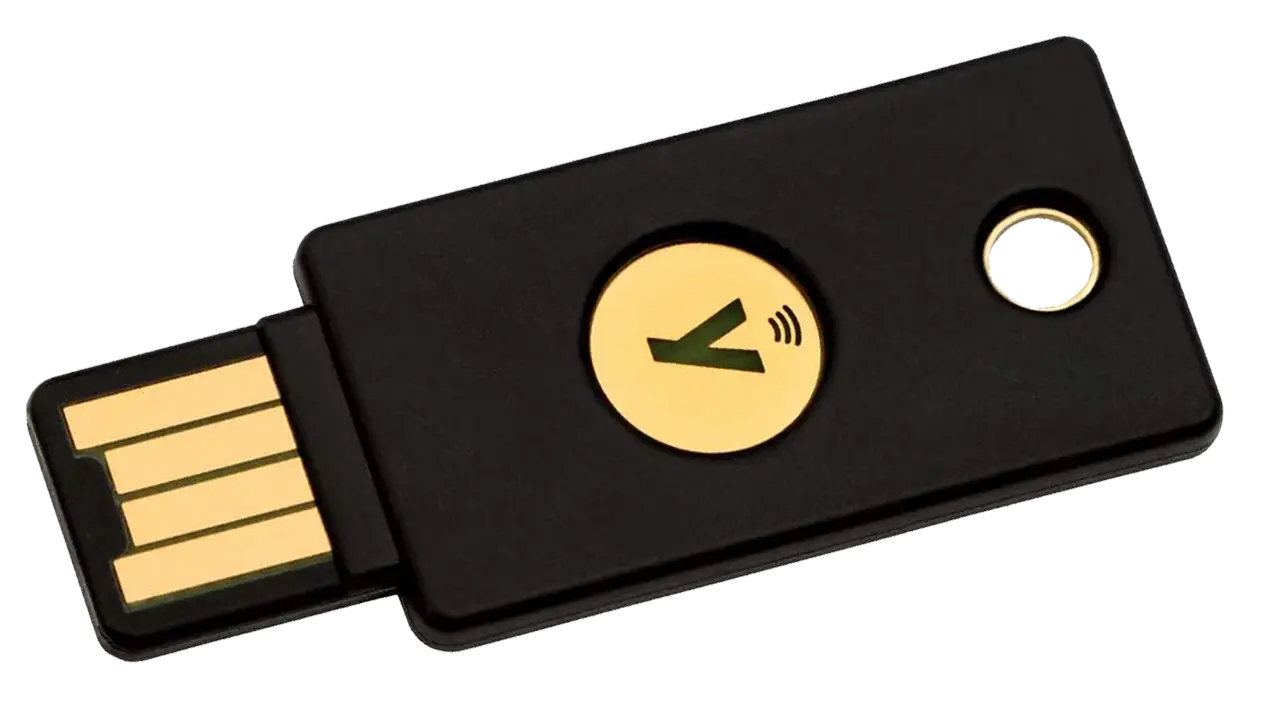
A hardware security key stores a passkey on a separate device you carry. But the best key for your business depends on your computers, phones and sign-in policies—not just the brand. Here are five options from Yubico, Google and Nitrokey, selected for different needs.
Selection checked 20 September 2026. This is a specification-based buying guide using manufacturer and Microsoft documentation, not a hands-on test or a universal ranking. Product images are manufacturer-supplied illustrations of the devices; images and trademarks remain with their respective owners.
Our starting point: shortlist a USB-C and NFC FIDO2 key for a mixed laptop-and-phone fleet, then test it with your Microsoft 365 configuration. Choose a multi-protocol key only if you need its extra functions. Consider a biometric key for desktop users who prefer fingerprint verification.
Best fit: mixed business authentication needs
Yubico YubiKey 5C NFC
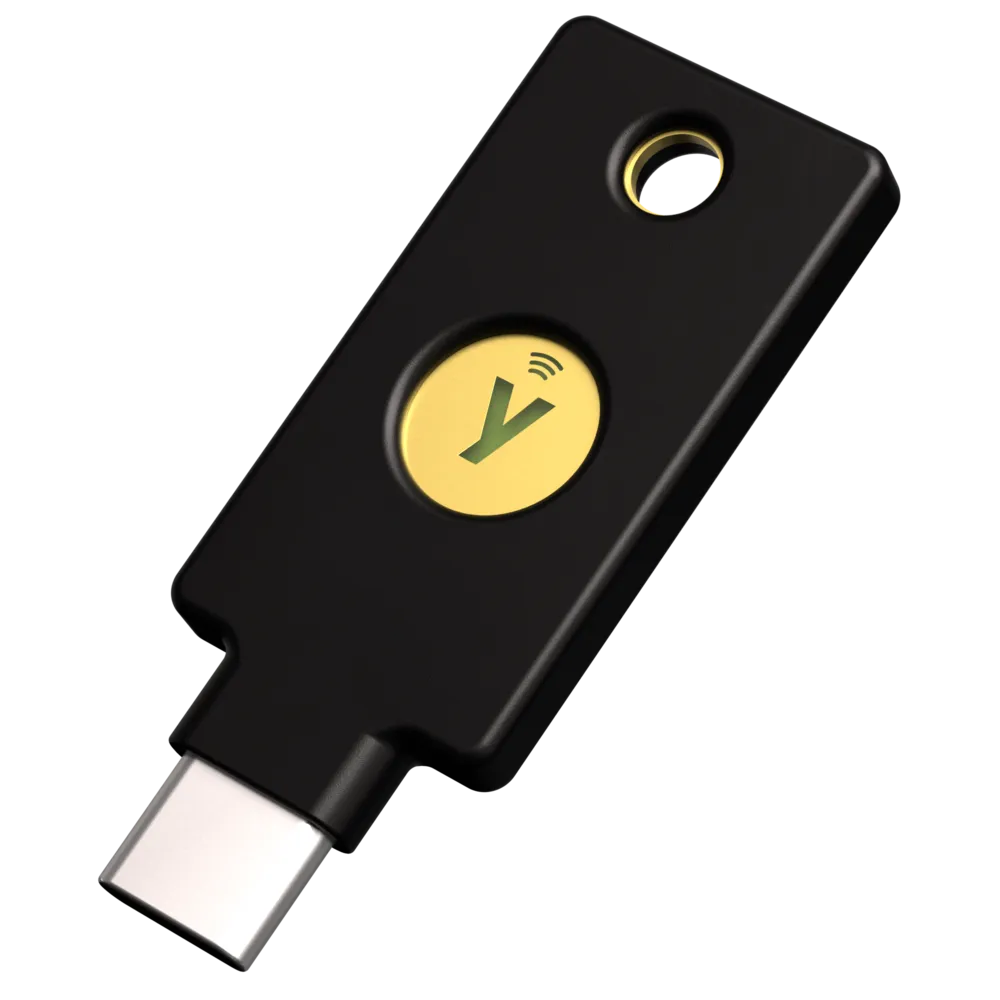
Connections: USB-C and NFC. Verification: PIN and touch, not a fingerprint reader.
A versatile choice when your organisation needs FIDO2 passkeys alongside smart-card/PIV, one-time passwords or OpenPGP. It is worth considering for IT teams supporting several authentication systems.
Trade-off: those extra protocols add little value if you only need passkeys. Older USB-A laptops may suit the YubiKey 5 NFC instead; do not assume every 5 Series model has NFC.
Best fit: straightforward FIDO-only deployment
Yubico Security Key C NFC
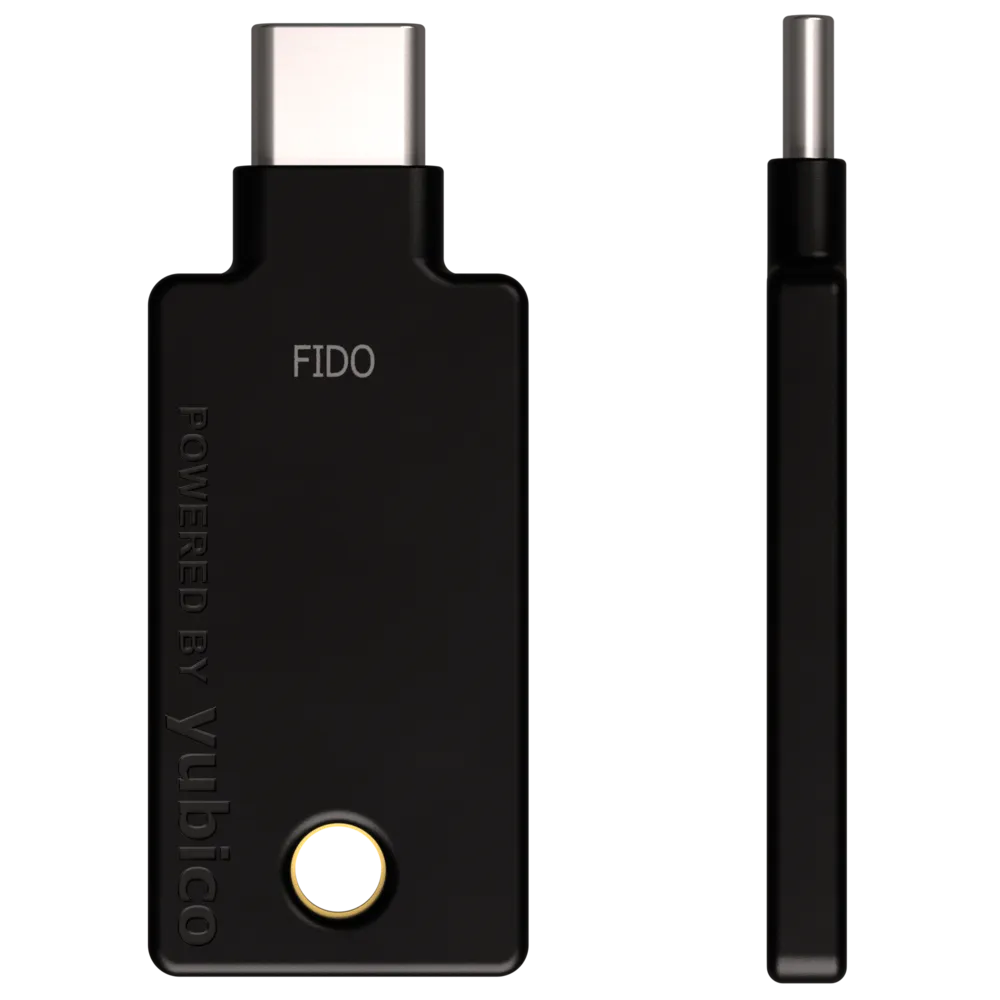
Connections: USB-C and NFC. Verification: PIN and touch.
A simpler shortlist option for staff who need FIDO2 passkeys and FIDO U2F second-factor sign-in, without the wider YubiKey 5 feature set. Match the USB-C model to your fleet; a USB-A version is also available.
Trade-off: it does not provide the 5 Series’ PIV smart-card, OpenPGP or OTP functions. “FIDO-only” describes its scope, not a guarantee that every application accepts it.
Best fit: fingerprint verification at a computer
YubiKey Bio Series – FIDO Edition
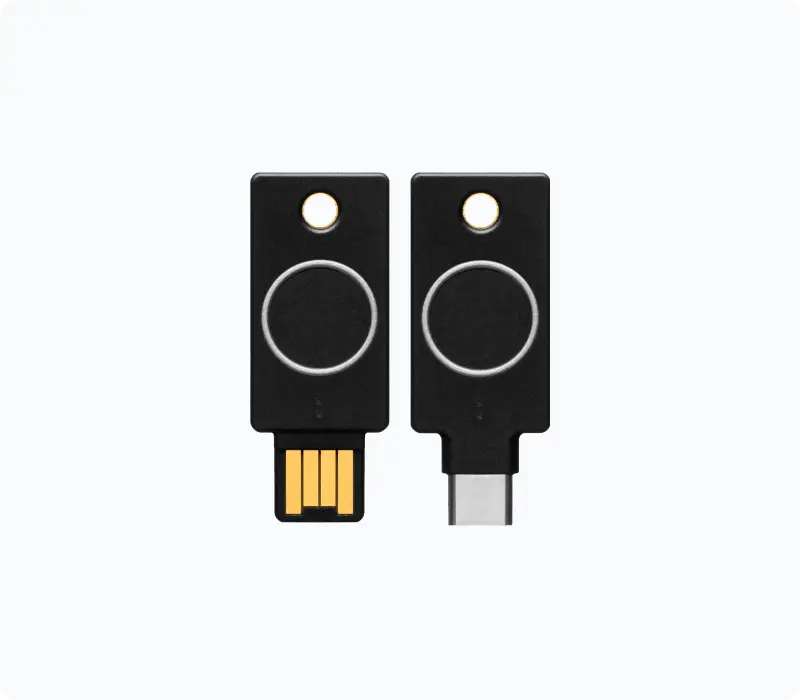
Connections: choose USB-A or USB-C; no NFC. Verification: fingerprint, with PIN fallback.
Consider the FIDO Edition for computer-based users who prefer a fingerprint to routine PIN entry. It supports FIDO2 and U2F, and keeps the fingerprint template on the key.
Trade-off: it is not the pick for NFC tap-to-phone use. The FIDO Edition is also different from Yubico’s Multi-protocol Edition; do not assume it includes smart-card/PIV features.
Best fit: Google-focused teams evaluating a FIDO2 key
Google Titan Security Key — FIDO2 generation
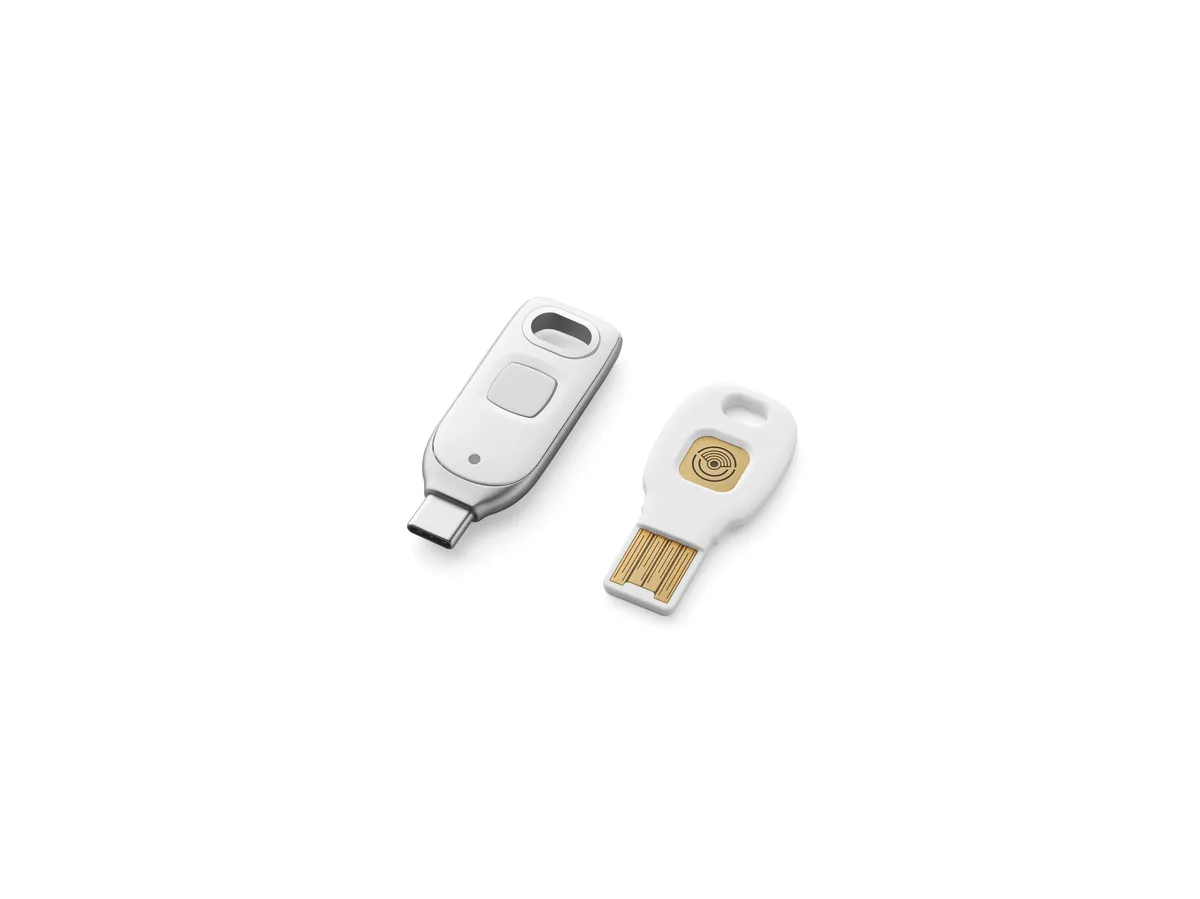
Connections: USB-A or USB-C, with NFC on both models. Verification: PIN and touch, not biometrics.
The generation introduced in November 2023 supports FIDO2 passkeys and stores more than 250 of them, according to Google. It is a useful comparison for Google-centric teams, although its FIDO2 support is not limited to Google accounts.
Trade-off: confirm you are buying the passkey-capable generation, not an older Titan model. Check Australian delivery, warranty and total cost; local stock has not been verified for this guide.
Best fit: technically managed, open-source environments
Nitrokey 3C NFC
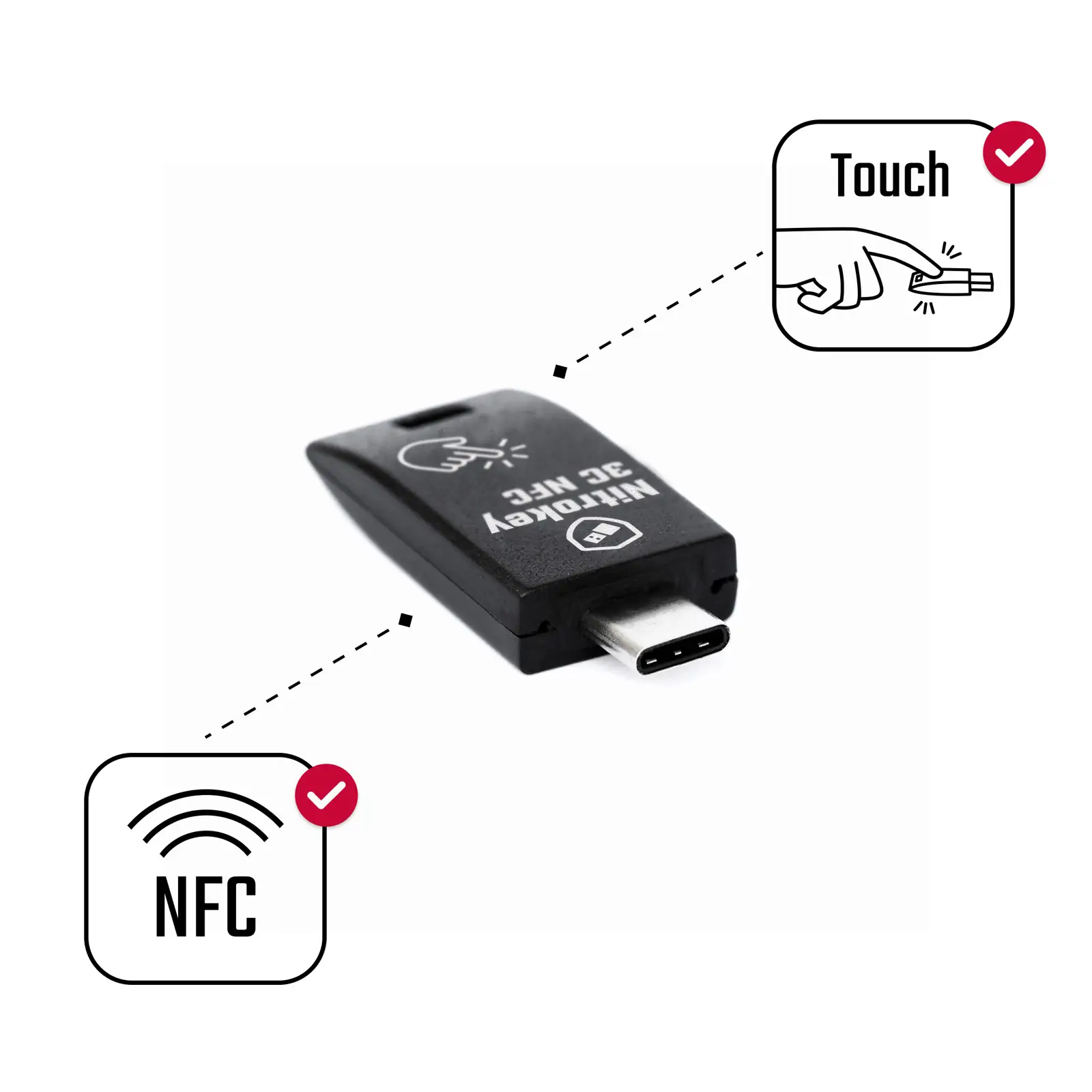
Connections: USB-C and NFC. Verification: PIN and touch, not a fingerprint sensor.
An alternative for teams that value open-source firmware and the ability to apply firmware updates. The platform supports FIDO2 plus additional functions including OTP and OpenPGP.
Trade-off: allow for firmware management and careful compatibility testing. Nitrokey’s Entra guidance describes disabling enforced attestation. Do not relax your company’s policy simply to use this key: confirm the exact model and firmware meet your approved requirements, or choose a different key.
Check Nitrokey 3C NFC specifications and its Entra compatibility notes.
Which hardware key type should you choose?
- USB-C + NFC: a practical starting point for newer laptops and supported phones. Test NFC sign-in in the actual mobile apps your staff use.
- USB-A + NFC: consider this for older business desktops with rectangular USB ports, while retaining phone tap capability.
- Biometric USB: useful when fingerprint verification fits the workflow. Check PIN fallback and whether the model supports NFC; the Bio FIDO Edition above does not.
- Nano or dual-connector designs: useful for particular port requirements, but verify the exact model. A small key left in a laptop needs different loss and theft procedures from a separately carried key.
Watch the terminology: a USB stick is not a security key, and an older U2F-only key is not automatically suitable for passwordless passkeys. A gold touch contact is not necessarily a fingerprint sensor.
Before buying hardware passkeys for Microsoft 365 in Australia
- Check the exact key against your Microsoft Entra policies. FIDO2 capability alone is not enough. Entra requires user verification and discoverable credentials; enforced attestation and allowed key identifiers can also affect registration. Use Microsoft’s current security-key guidance, not a blanket brand-level compatibility claim.
- Pilot the real workflow. Test enrolment, browser sign-in, Outlook and Teams, mobile use, and Windows sign-in if required. A successful website login does not prove every desktop or mobile workflow works.
- Plan recovery before rollout. Register an approved spare key or another permitted recovery method. Store the spare separately, document replacement and revocation, and keep credentials individual—not shared between staff.
- Compare the full Australian purchase cost. Check the seller, exact model and firmware, GST, delivery, warranty, spare devices and support time. Avoid choosing from an overseas headline price alone.
Need help narrowing the shortlist? Compuloop can review your devices and Microsoft 365 sign-in requirements before you commit to a fleet-wide purchase. Use the sign-in review option below to discuss a small pilot first.
Three workplace scenarios to plan for
The following are illustrative planning scenarios, not documented Compuloop customer results. The photographs show real people or hardware, but not the organisations described.
1. The office team with a mix of personal and company phones
Imagine a Sydney professional-services firm where some employees have managed laptops and company mobiles, while others use a personal phone for work authentication.
A blanket instruction to “save your passkey” leaves important questions unanswered. Which credential providers are approved? Who supports a replacement phone? What happens when someone leaves? Are staff being asked to depend on a personal account they do not want to use for work?
Practical approach: agree on approved options before sending instructions. Include a supported alternative for staff who cannot use a personal phone. Test the actual browsers and devices used for Outlook, Teams and other essential applications.

2. The construction team using shared site computers
Consider a builder whose supervisors move between site offices, use shared computers and open drawings or project correspondence throughout the day.
“It worked on the director’s laptop” is not a useful acceptance test. Your pilot needs the site machine, its browser, relevant applications and the people who actually use them.
Practical approach: evaluate a supported hardware-key or other approved sign-in option for each worker. Check connectors, device restrictions and the full sign-in flow before buying equipment. A shared computer should not become a reason to share one person’s account or security key.
If this sounds familiar, the sign-in plan belongs alongside your wider construction IT support planning, rather than being treated as an isolated office task.
3. The employee who loses their phone before payroll
A finance employee loses the device they normally use for authentication. They need access urgently, and the support team receives a convincing request for help.
The business needs a way to restore access without allowing urgency to replace identity verification. Write down who can approve recovery, how identity is checked and what evidence the support team records.
Microsoft provides a Temporary Access Pass: a time-limited credential that can support registration and recovery when it is enabled and correctly scoped. It is not a permanent fallback or something to issue solely because an email asks for it. See Microsoft’s Temporary Access Pass guidance.
Practical approach: rehearse a lost-device event before rollout. Include a remote worker and check that the support team can follow the process without improvising.
A practical Microsoft 365 passkey rollout checklist
1. Establish who owns the change
Name a business sponsor and technical owner. Agree which applications are critical and which periods to avoid—such as payroll, tender submissions or a major site handover. Give staff one clear support contact.
2. Check policies as well as recent usage
Ask your administrator to identify people enabled for SMS or voice and those actually using it. These are different questions. Review existing passkey settings and authentication policies before deciding what needs to change. Microsoft’s authentication-method management guidance explains the policy controls.
3. Match methods to work patterns
Separate office, frontline, remote, administrator and external-user requirements. Record supported operating systems, browsers and credential providers. Check the current passkey configuration requirements rather than assuming that every existing device is suitable.
4. Protect administrative recovery
Microsoft recommends two or more emergency-access accounts to reduce the risk of losing administrative access. Those accounts need strong protection, safe credential storage, monitoring and regular testing—not casual use as spare logins. Have a qualified administrator review them against Microsoft’s emergency-access guidance before enforcing broad changes.
5. Pilot, communicate and measure
Use a small group representing real work patterns, not only the IT team. Test registration, ordinary sign-in and recovery. Give staff device-specific instructions, then review registration progress, failed sign-ins and support requests before expanding. Microsoft describes this phased approach in its phishing-resistant deployment guide.
6. Close exceptions deliberately
Keep an exception list with an owner, reason and review date. An unresolved shared-device problem should not disappear into an email thread. Confirm that each person can use the agreed method before removing their previous access route.
What should an Australian business budget for?
Request a scoped proposal rather than a per-user figure without assumptions. Separate discovery, configuration, hardware, staff onboarding, recovery documentation and ongoing support.
A small office with consistent managed devices presents a different job from a distributed team with shared machines and external collaborators. Ask what your current subscriptions cover, which proposed controls need additional licensing and whether any telecom-provider charges are relevant. Hardware, licences and professional services should be itemised in AUD, with GST treatment clear.
Our guide to Microsoft 365 IT support for Australian businesses provides a broader checklist for assessing the support relationship around this work.
Frequently asked questions
Does “we already use Microsoft Authenticator” settle it?
No. The app name alone does not tell you which authentication method people use. Ask the administrator to identify the configured method and test it against the intended policy. Do not assume an existing approval prompt is the same thing as an Authenticator passkey.
Should we remove SMS immediately?
No blanket change should happen without checking readiness. Complete the inventory, pilot and recovery checks first. Then remove old methods through a controlled change with support available.
Can we keep using Windows Hello for Business?
Microsoft’s transition guidance says users already using Windows Hello for Business or another phishing-resistant method can continue. Still check SMS/voice enablement and any registration prompts affecting those users.
Do passkeys replace backups and other security measures?
No. Account authentication does not back up your data, patch a laptop or decide who should have access to a sensitive document. Keep those responsibilities in your security plan.
Make your next sign-in change a planned one
Ask Compuloop to review your Microsoft 365 sign-in setup and scope a practical transition. Tell us your team size, device mix, existing authentication methods and any shared-device or remote-working requirements.
The next step is a discussion about the work required—not a promise that every environment can be changed in a single afternoon.
Sources and editorial scope
Microsoft sources were checked on 20 September 2026. Dates and product behaviour can change; administrators should consult the linked documentation and their tenant notices before implementation. This is a business-planning guide, not a tenant-specific configuration procedure. The latest Microsoft Learn retirement guidance takes precedence over the broader July announcement where user-group dates differ.